
We all want to use and share great-looking images, whether it’s for professional or personal use. And when it comes to creating content for an audience, that bar gets raised even higher.
But the problem is not everyone is a Photoshop wizard, myself included.
During the first few months of blogging and learning to create a website, I realized that it not only takes time to master Photoshop, it’s also expensive.
Luckily, there are many free photo editing tools that work just as great. If you value the importance of a good image but don’t want to spend too much time (or money) to make it look good, then it’s time you check out this list.
The 7 Best Free Photo Editing Software’s
I’ve used all of the tools on this list, and they’ve all helped me deliver superb images for me and my clients.
I hope you’ll also find these helpful for your own photo editing needs.
The important thing to remember is that a tool doesn’t need to have too many features. You just need the ones that make your photos look better.
Online Photo Editors
1. Pixlr
When you go to Pixlr’s website, you can choose to use Pixlr Editor or Pixlr Express.
Pixlr Editor has more photo editing features that are similar to Photoshop, while Pixlr Express is more suited for applying filters, overlays, texts, and other effects to a photo.
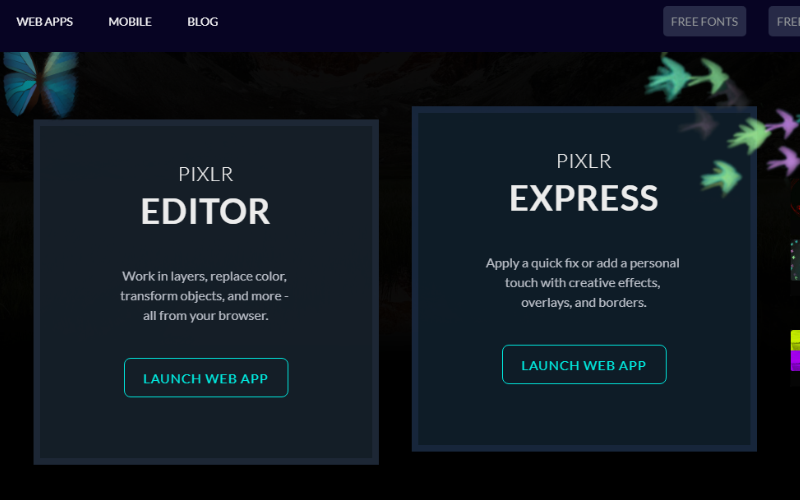
With Pixlr Editor, you can do basic stuff like cropping, resizing, and changing the color of the entire image.
In addition to this, you get more editing tools like adding layers, adjusting image properties like contrast, hue, and brightness, as well as applying masks for more advanced image editing.
You also get to apply a decent number of filters including HD Toning and Tilt-Shift.
All images can be saved as JPG, PNG, BMP, TIFF, and PXD (layered Pixlr image).

2. SumoPaint
SumoPaint is another free online and desktop photo editor with basic and advanced features. You can upload a photo from your computer or from a URL.
Basic overall photo editing like brightness/contrast, hue/saturation, color balance, and levels can be achieved from the menu bar on top of the editor.

The left pane has the drawing tools which include several shapes. One, in particular, is called the Symmetry tool, which “mirrors” a shape’s stroke, creating a symmetric pattern.
Besides tweaking images, I find Sumopaint to be useful in creating simple logos using the text and brush tools.
Other than the ads that appear on both sides of the web editor and intermittently crash Chrome (the tool uses Flash to run the web version), this photo editor gets the job done easily and is more than suitable for users who are not photo editing experts.
3. Canva
Unlike the two online tools previously mentioned, Canva doesn’t have conventional photo editing features.
Instead, this tool focuses on editing images for social media and other digital formats. Most bloggers use Canva to edit images to post on Facebook, Twitter, Instagram, and Pinterest.

As far as editing a photo is concerned, you can only do a few things in Canva. You can flip, crop, and apply some basic filters to photos uploaded from your computer. Canva also has a library where you can get some photos for free.
Where Canva really shines is adding elements to images… like modern and attractive fonts, illustrations, grids, frames, charts, and icons. The editor itself is easy to use and most tasks can be done with drag-and-drop actions.
Desktop Photo Editors
4. Gimp
Gimp is an advanced photo editing tool that’s more suited for professional photo editors and programmers.
Similar to Photoshop, Gimp’s image editing features comprise mainly of adding layers to images and giving the user a handful of tools to then manipulate these images.

You can use Gimp for basic image resizing, cropping, and converting to another format. However, the cool things you can do with this software can only be achieved if you are already familiar with photo editing techniques.
For instance, you can select a color to “show through” a black and white image to create an interesting effect by using Layer Masks and features in the software called Desaturate and Paintbrush.
If you don’t want to spend on Photoshop but want to create advanced photo tweaks, then it’s surely worth your time to learn Gimp.
5. Fotor
Fotor is another free editing tool for Windows that’s easier to use than Gimp.
You can edit a photo from your computer or select the Batch option to apply editing properties to multiple files.
You won’t find layering and drawing tools here in Fotor. Instead, you’re given Scenes, which are different filters you can apply to a photo.
The Crop feature is ready to cut images to predetermined dimensions (square, postcard size, 16 x 9).

In addition to the filters, you can also use different image enhancements for red-eye, tone, detail (sharpness), white balance, vignette, highlight/shadows, and curve (color levels).
There’s also an option to add text with great-looking fonts.
When you’re done with your work, you can save an image as JPG, PNG, BMP, or TIFF. You can also share the image to Facebook, Flickr, or Twitter straight from the software.
6. PhotoScape
PhotoScape has something for both basic and advanced users. This flexible desktop tool has several functions in addition to editing photos. It can edit in batches, create GIF animations, and process images for printing (to name a few).

The editing interface is quite different from the more advanced photo editors.
The left panel serves as a file explorer where you can simply click on which folders you want to get images from. Clicking an image opens it in the editing area where you can then apply several editing tools found below. You can crop, resize, apply a frame, tweak image appearance, and even add word balloons and other funny drawings.
If you’re looking to make photos look old, this tool has more than enough filters and frames for that. With features like Vignetting, Antique Photo, and Film Effect, the possibilities for interesting images are endless.
7. Paint.net
Paint.net falls somewhere between basic and advanced photo editing. It’s easy enough for novices to learn while still providing powerful features.
This editor is close to what Gimp and Photoshop look like, although with fewer bells and whistles.
Basic image editing functions like resizing, cropping, rotating, flipping, and saving images to another format are easy to figure out with this tool.

Surprisingly, its more advanced features like adding layers, adjusting image properties, and applying filters can be learned if you spend enough time with the software. This is mostly because the menus and tools are presented in an organized and logical manner.
I appreciate the placement of the History box on the top right corner because it’s easier to undo specific changes.
If Photoshop is too complicated for you, Paint.net is a great alternative to master some basic to intermediate photo editing skills.
The Best Powerful And Free Photo Editors
Whether it’s getting that perfect photo to post on Instagram or a quick touch-up before sharing photos of your family vacation, these handy editing tools will help you get the job done. Each tool has its strengths and weaknesses, but it’s almost impossible to not find one that you like the most.
My online favorite is easily Canva because it’s quick, easy, and always produces great results. For a desktop editor, I really enjoy Gimp and am always impressed by what it can do with just a few steps. Well let me know which one you picked and why.
Bonus tip: If you are using WordPress, do use one of these image compression plugins to improve your blog load time.
Do you have a go-to photo editing tool that’s not on this list? Let us know in the comments below!
Like this post? Share it with your friends!
Here are a few hand-picked articles for you to read next:
- 3 Softwares to Compress and Resize Images for your blog
- How To Find Free Images For Your Blog Using Flickr
- 6 Best WordPress Image Compression Plugins Compared & The Winner Is…
Subscribe on Youtube
7 Powerful Free Photo Editors For Making Professional Looking Images is a post from ShoutMeLoud - Shouters Who Inspires
Comments
Post a Comment